Roadmaps
A roadmap shows tasks from the boards of a project as bars on a calendar. Roadmaps is an extension that comes with the server release.
Roadmaps is an extension. Your instance has it only if an administrator installed the
solo-roadmappackage. See Themes and extensions.
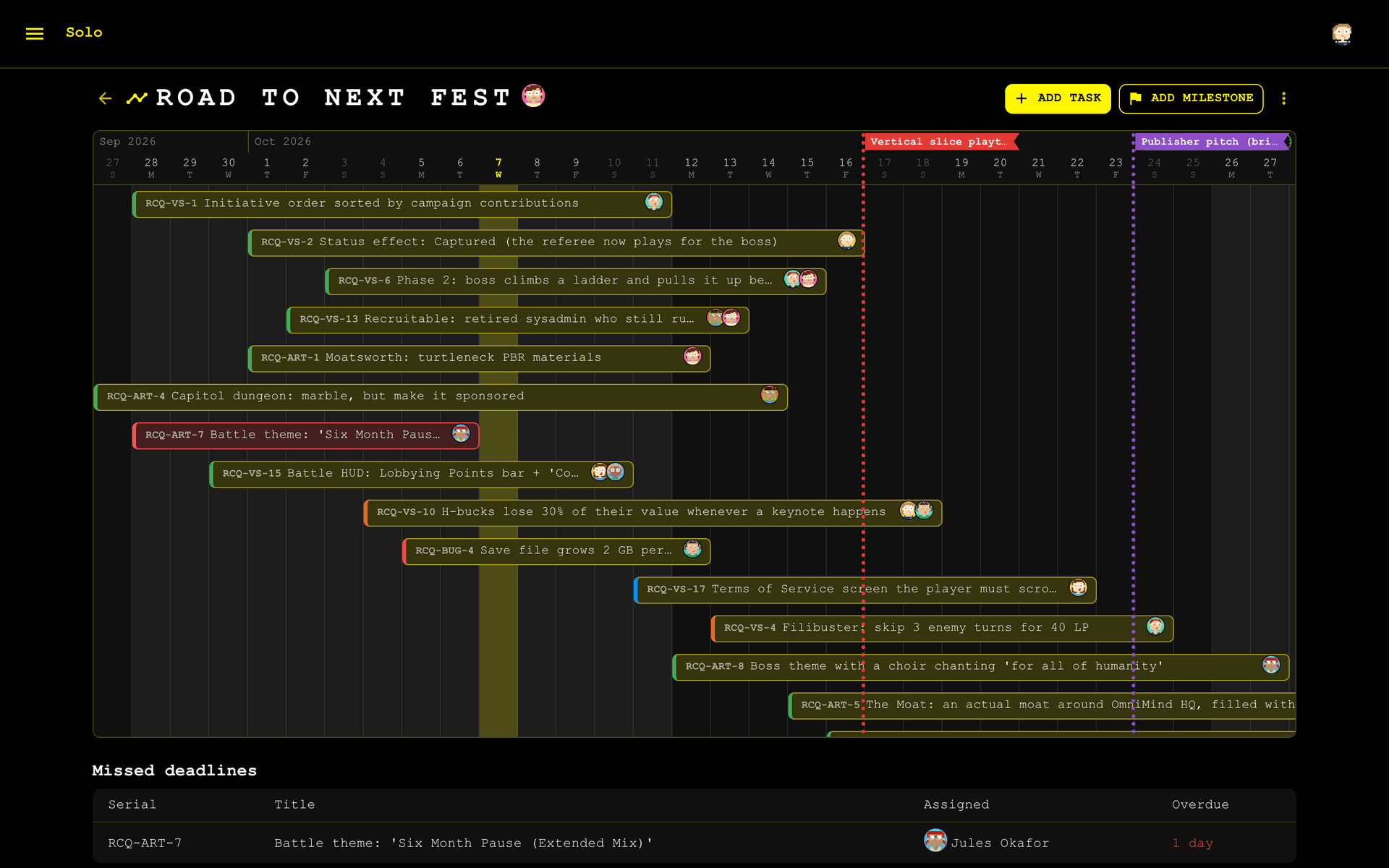
What a roadmap is
A roadmap is a named timeline in a project. It collects tasks from the boards of that project.
- Each task is a bar that runs from its start date to its deadline.
- The grid has one column for each day. Stripes mark the sprints. The grid highlights the column for today.
- A row holds one task or more, when their bars do not overlap.
The dates on a roadmap are the dates of the tasks. When you move a bar, Solo changes the task. The board and the roadmap always show the same dates.
Open or create a roadmap
Each project has a Roadmaps section in the sidebar, below its boards. The project home and the Projects page also list the roadmaps.
Only a super admin can create or delete a roadmap.
- Select Add roadmap in the Roadmaps section of the sidebar.
- Enter a title.
Add a task
You need the Read/write role.
- Right-click a day that no bar covers. On a touchscreen, press and hold the day.
- Select Add a task on that day.
- Select the task in the task picker. You can search by name, serial number or epic.
Add task in the header does the same for today.
The task picker hides finished tasks and the tasks of closed boards. Use the switches in the picker to show them. It does not show tasks that are on the roadmap.
Solo sets the dates of the task as follows:
| The task | Result |
|---|---|
| Has a deadline | The task keeps its dates. |
| Has no deadline | The day that you selected becomes its deadline. The bar is one day long. |
| Has no deadline, and the day is in the past | The bar runs from that day to today. |
Change the dates of a task
| To | Do this |
|---|---|
| Move the start and the deadline together | Drag the bar sideways. |
| Change only the start or only the deadline | Drag one edge of the bar. |
| Move the bar to a different row | Drag the bar up or down. |
| Open the task | Select the bar. The task drawer opens. |
The first direction of a drag sets what the drag does. A drag up or down does not change the dates.
When you drop a bar on the middle of a row with space for it, the bar joins that row. In other positions, a line between the rows shows where the bar gets a row of its own.
Select more than one bar
- Drag a box around the bars. Start the drag in an empty part of the grid.
- Cmd-click a bar to add it to the selection or remove it. Use Ctrl on Windows and Linux.
- Shift-click a bar to select each bar from the last one that you selected.
When you drag one selected bar, the other selected bars move with it. Press Esc to clear the selection.
Remove a task from a roadmap
- Right-click the bar. You can also press and hold it, or select its ⋯ button.
- Select Remove from roadmap.
With more than one bar selected, the command removes all of them. Delete does the same. Use Cmd+Delete on a Mac.
Solo removes the task from this roadmap only. The task stays on its board.
Milestones
A milestone is a named date on the roadmap. It does not belong to a task. A dotted line marks its day, with a flag that shows its name.
| To | Do this |
|---|---|
| Add a milestone | Select Add milestone in the header. Or right-click a day and select Add a milestone on that day. |
| Change a milestone | Select its flag. Change the name, the day or the colour. |
| Move a milestone | Drag its flag or its line. |
| Delete a milestone | Right-click its flag and select Delete milestone. |
A milestone flashes while it is due. It is due from the start of its sprint to the end of its day. When the day is in the first three days of a sprint, the milestone is due from the start of the sprint before.
Missed deadlines
A bar flashes red when the deadline of its task is past and the task is not finished. A table below the grid lists these tasks.
Other people on the roadmap
The header shows the people who have the roadmap open. A change that a different person makes appears on your roadmap without a page reload.
Timeline settings
A super admin sets these values in the Admin settings, in the Roadmaps entry.
| Setting | Default | Range |
|---|---|---|
| Days before today | 365 | 1 to 3650 |
| Days after today | 730 | 1 to 3650 |
| Sprints start on | Monday | A day of the week |
| Sprint length (weeks) | 2 | 1 to 52 |
A change applies the next time a roadmap loads.