Boards
Read a board, arrange its epics and groups, move cards, and close a board when its work is complete.
Open a board
Select the board in the sidebar, below its project. The Projects page and the project home also list the boards.
Create a board
Only a super admin can create a board.
- Select Add board below the project in the sidebar.
- Enter a Name.
- Enter an Alias. Use 1 to 8 capital letters and digits. Two boards in one project cannot have the same alias.
- Optional: select an icon or upload an image.
- Select Create.
The new board starts with a copy of the label defaults of the project.
Read a board

A board is a grid.
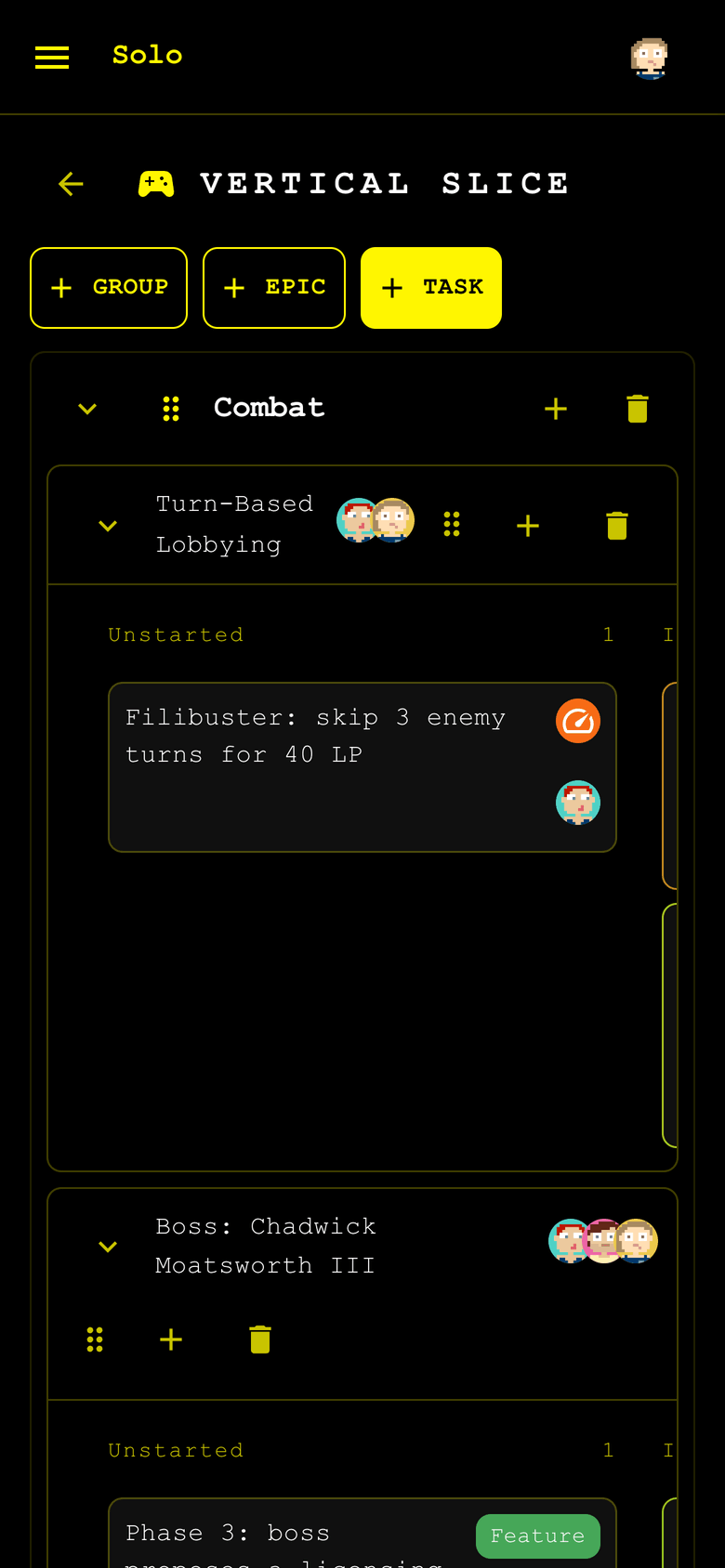
- Columns show the status of a task: Unstarted, In Progress and Finished. The header shows the number of tasks in each column.
- Lanes run across the columns. Each epic has one lane. The left part of a lane shows the name and the assignees of the epic.
- Epic groups hold epics below a title.
- The No epic lane at the bottom holds the tasks that belong to no epic.
Cards
Each task is a card. A card shows:
- The name of the task.
- The label of the task.
- A deadline ring, when the task has a deadline.
- The progress of the sub-tasks, for example
3/5. - The pictures of the assignees.
Select a card to open the task drawer.
Finished cards
Solo dims a finished card and hides its deadline ring.
A lane shows the first 25 finished cards. Select Show all in the Finished column to see the others.
Collapse a lane or a group
Select the arrow next to the name of an epic to collapse its lane. A collapsed lane shows the number of hidden tasks.
Select the arrow next to the title of a group to collapse the group. When you open a board, a group with no unfinished tasks starts collapsed.
Epics
You need the Read/write role to change epics.
| To | Do this |
|---|---|
| Create an epic | Select Epic in the board header. Enter a name. |
| Create an epic in a group | Select the add button in the group header. Enter a name. |
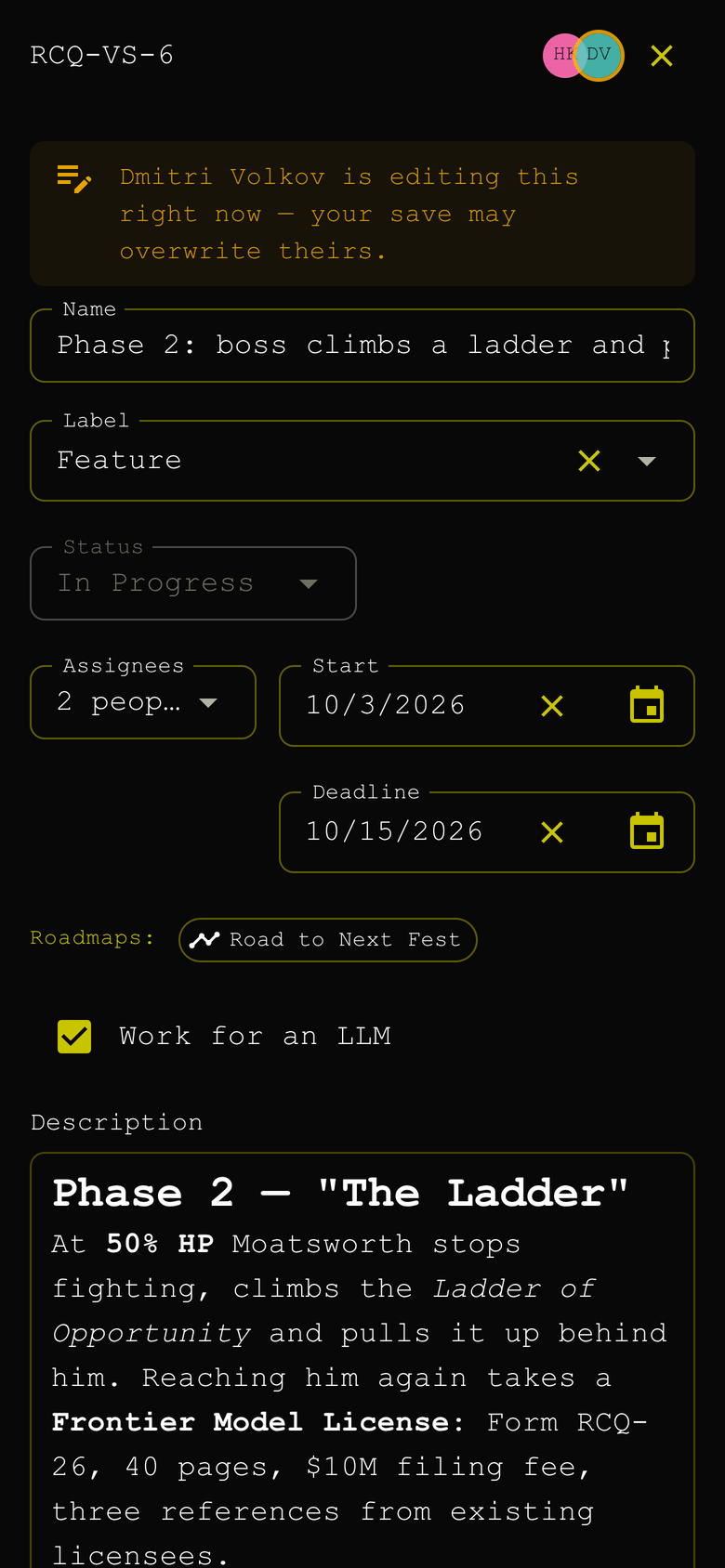
| Open an epic | Select the left part of its lane. The drawer shows the name, the assignees, the description and the comments. |
| Add a task to an epic | Select the add button in the left part of its lane. |
| Move an epic | Drag the handle in the left part of its lane. You can drag an epic into a group or out of a group. |
| Delete an epic | Select the delete button in its lane. Confirm. |
When you delete an epic, Solo keeps its tasks. The tasks move to the No epic lane.
Epic groups
You need the Read/write role to change groups.
| To | Do this |
|---|---|
| Create a group | Select Group in the board header. Enter a title. |
| Rename a group | Select the group header. Enter the new title. |
| Move a group | Drag the handle in the group header. |
| Delete a group | Select the delete button in the group header. Confirm. |
When you delete a group, Solo keeps its epics and tasks. The epics stay on the board in the same order.
Move a card
You need the Read/write role. Drag a card to change the task:
| Drop the card | Result |
|---|---|
| In a different column | The status of the task changes. |
| In a different lane | The task moves to that epic. |
| In the No epic lane | The task leaves its epic. |
| Above or below a different card | The order in the column changes. |
To move a task to a different board, use Move to board in the task drawer.
Live changes and presence
A board stays current without a page reload. When a different person changes a task, the card on your board changes and its outline flashes one time.
Small pictures show where other people are:
- In the board header: the people who have the board open.
- On a lane or a card: the people who have that epic or task open.
A grey picture shows a person who reads. An outlined picture that pulses shows a person who edits.
On a phone
On a narrow screen, a lane shows one column at a time. Swipe sideways to see the next column.
To move a card to a different column, drag it to the left edge or the right edge of the screen. Hold it there. The lane moves to the next column.
Close a board
Close a board when its work is complete. Only a super admin can close or reopen a board.
- Open the project home.
- On the Boards tab, select Close on the card of the board.
A closed board:
- Leaves the sidebar and the Projects page.
- Moves to Closed boards at the bottom of the Boards tab.
- Becomes read-only for all members. Nobody can change its tasks or add comments.
To see a closed board, select View next to its name. To open it again, select Reopen.
Board settings
- Open the project home.
- On the Boards tab, select Board settings on the card of the board.
- Change the name, the alias or the icon.
- Select Save.
An extension can add its own settings to this dialog.
The alias of a board is part of its page address and of the serial number of each task on it. When you change the alias, links that use the old alias stop working.