Projects and members
Create a project, invite people, set their roles, and manage labels, the audit log and the project settings.
The Projects page
The Projects page shows one card for each project that you are a member of. Select All projects in the sidebar to open it.
A card shows:
- The name and icon of the project.
- Your role: Read only or Read/write. An owner also has an Owner chip.
- The open boards of the project. Select a board to open it.
- Sections from extensions. The Roadmaps extension lists the roadmaps of the project.
The settings button on a card opens the project home.
Create a project
Only a super admin can create a project.
- Select Add project at the bottom of the sidebar.
- Enter a Name.
- Enter an Alias. Use 1 to 8 capital letters and digits. Two projects on one instance cannot have the same alias.
- Optional: select an icon, or select Upload image. An image must be a PNG, JPG or SVG file of 1 MB or less.
- Select Create.
Solo opens the home of the new project. You are its first member, with the Read/write role and the Owner flag.
The project home
To open the project home, select Project settings below the project in the sidebar.
The project home has these tabs. Your role sets which tabs you see.
| Tab | Who sees it | What it holds |
|---|---|---|
| Boards | All members | The open boards and the closed boards. |
| Members | All members | The members and their roles. |
| Label defaults | Read/write members | The labels that a new board starts with. |
| Audit | Owners | The audit log of the project. |
| Settings | Owners | The name, alias and icon of the project, and Delete project. |
An extension can add a section to the first tab. The tab name then includes the section, for example Boards & Roadmaps.
Members
Invite a member
Only an owner can invite a member.
- Open the Members tab.
- Enter the email address of the person in Invite by email.
- Select a Role: Read only or Read/write.
- Select Invite.
The new member has a Pending chip until the first sign-in. If the instance sends email, Solo sends the person an invite with a link to the instance. If email is off, give the person the address of the instance yourself.
To send the invite again, select the resend button in the row of a pending member.
The email address must be the address of the account that the person signs in with. The first sign-in with that address activates the invitation.
You cannot assign a task to a pending member.
Change a role
Only an owner can change a role.
- To change the role of a member, select a different value in the Role column.
- To make a member an owner, set the switch in the Owner column.
- To remove a member, select the remove button at the end of the row.
A project must keep one owner or more. Solo disables the switch and the remove button for the last owner.
Labels
A label marks a task or a sub-task with a name and a colour. A label can also have an icon. There are two kinds:
- Task labels, for tasks.
- Sub-task labels, for sub-tasks.
Labels belong to a board. The project holds label defaults. A new board copies the label defaults when you create it. After that, the board keeps its own labels.
A new project starts with these label defaults:
| Kind | Labels |
|---|---|
| Task | Bug, Feature, Improvement |
| Sub-task | Code, Asset, Design, Writing |
Change the label defaults
A member with the Read/write role can change the label defaults.
- Open the Label defaults tab.
- Use the add, edit and delete buttons in the Task labels card or the Sub-task labels card.
A change here applies to boards that you create later. Boards that exist keep their own labels.
Change the labels of one board
- Open the Boards tab.
- Select Labels on the card of the board.
- Add, edit or delete labels.
When you delete a label, the tasks and sub-tasks that used it lose only that label.
Reset to project defaults replaces the labels of the board with the label defaults. Solo deletes the labels that only this board had. The tasks and sub-tasks that used those labels lose them.
Audit log
Only an owner can read the audit log.
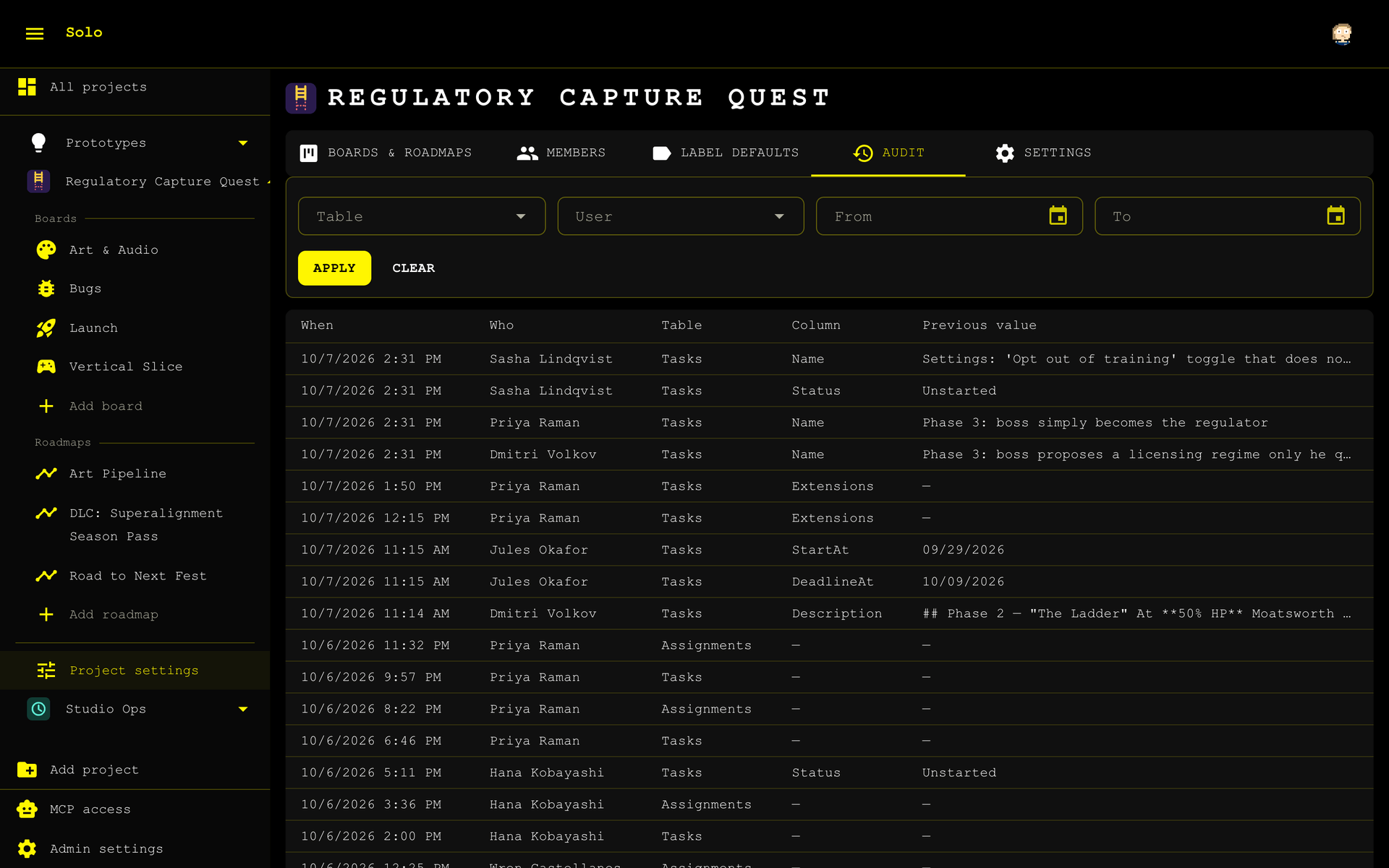
Solo writes one row for each changed column. A row shows:
| Column | Content |
|---|---|
| When | The time of the change. |
| Who | The person who made the change. An extension can add a line here. The MCP extension adds LLM via MCP. |
| Table | The kind of record that changed. |
| Column | The field that changed. |
| Previous value | The value before the change. |
To filter the log, select a Table, a User, or a date range. Then select Apply. Clear removes the filters.
Solo deletes audit entries that are older than the retention period of the instance. A super admin sets the period in the Admin settings.
Project settings
Only an owner can change the project settings.
- Open the Settings tab.
- Change the Name, the Alias or the icon.
Solo saves a field when you leave it or press Enter.
The alias is part of each page address and each task serial number in the project. When you change the alias, links that use the old alias stop working.
Delete a project
- Open the Settings tab.
- Select Delete project.
- Confirm.
Solo deletes the boards, the tasks and the history of the project. You cannot get them back.