Design Docs
Keep Markdown notes, task links, images, and sketches together in a project.
Design Docs is an optional extension. An administrator must install solo-design-docs before its pages appear. See Themes and extensions.
Open or create a design doc
A design doc is a vault of notes and folders. Each vault belongs to one project. The project sidebar, project home, and Projects page list its design docs.
- Select New design doc in the project sidebar.
- Enter a name.
- Optional: select Import an Obsidian vault (.zip)…. See Import and export.
- Select Create.
A super admin can create, rename, close, reopen, or delete a vault. Content access still requires project membership. Members with Read/write access and project owners can edit notes. Members with Read only access can read notes and export the vault.
Organize notes
Use Note or Folder above the hierarchy to create an item at the vault root. The ⋯ menu beside an item contains its rename and delete actions.
- Select a folder arrow to expand or collapse that folder.
- Use the button beside Vault root to expand or collapse all folders.
- Drag an item title onto a folder to move the item there.
- Drag an item onto Vault root to move it to the root.
- On a touchscreen, hold the title briefly before dragging it.
Collapsing all folders keeps the path to the current note open. Solo remembers expanded folders and the current note in this browser or desktop instance.
Write a note
Select a note in the hierarchy. The editor saves changes automatically while connected. Markdown formatting appears as you write. The cursor reveals the syntax that you edit.
| To | Do this |
|---|---|
| Create a heading | Type one to six # characters, then a space. |
| Create a bullet list | Type - at the start of a line. |
| Create a numbered list | Type 1. at the start of a line. |
| Continue a list | Press Return. |
| Indent or outdent | Press Tab or Shift+Tab. |
| Format text | Select it, then use the formatting panel above the selection. |
| Change text size | Use Editor font size in the vault header. |
| Change text margins | Use Editor margin width in the vault header. |
Text size and margins persist in this browser or desktop instance. They do not change the stored Markdown.
The insertion palette follows the current line beside the left text margin. Move the pointer to show it. Typing hides it. Alt+Insert moves keyboard focus to the palette.
Format selected text
Select text to show the formatting panel. It floats above the selection, or below it when there isn’t room. On touch screens it prefers below, clear of the system’s own selection menu. Each button turns a style on for the selection, or off when the whole selection already has it.
| Button | Markdown | Shortcut |
|---|---|---|
| Bold | **text** |
Ctrl+B or ⌘B |
| Italic | *text* |
Ctrl+I or ⌘I |
| Highlight | ==text== |
|
| Link | [text](url) |
Link asks for an address; on a link it removes the link and keeps the text.
==highlight== is extended Markdown: Obsidian renders it, but some other Markdown apps show the equals signs.
Tick off tasks
A list item that starts with [ ] or [x] and a space is a task, and shows as a checkbox:
- [ ] Block out the level
- [x] Pick a palette
1. [ ] Numbered steps work too
Click or tap the checkbox to tick or untick it. This changes the x in the stored Markdown and leaves the caret where it is.
Move the caret into the box to see - [ ] as text again and edit or remove it.
In a note you can only read, the checkboxes show but don’t change.
Link notes and tasks
Drag a note title from the hierarchy into the editor to insert a link at the drop position.
Obsidian links such as [[Movement]] and [[Movement#Dash|Dash timing]] also work within a vault.
Select Link a task in the insertion palette to search the project’s tasks. The task picker can include finished tasks and closed boards. Select a task link to open the task drawer.
The core task and comment editors also have a Link a doc action. It inserts a link to a note or one of its headings. Note links remain valid after a rename or move.
Add images and sketches
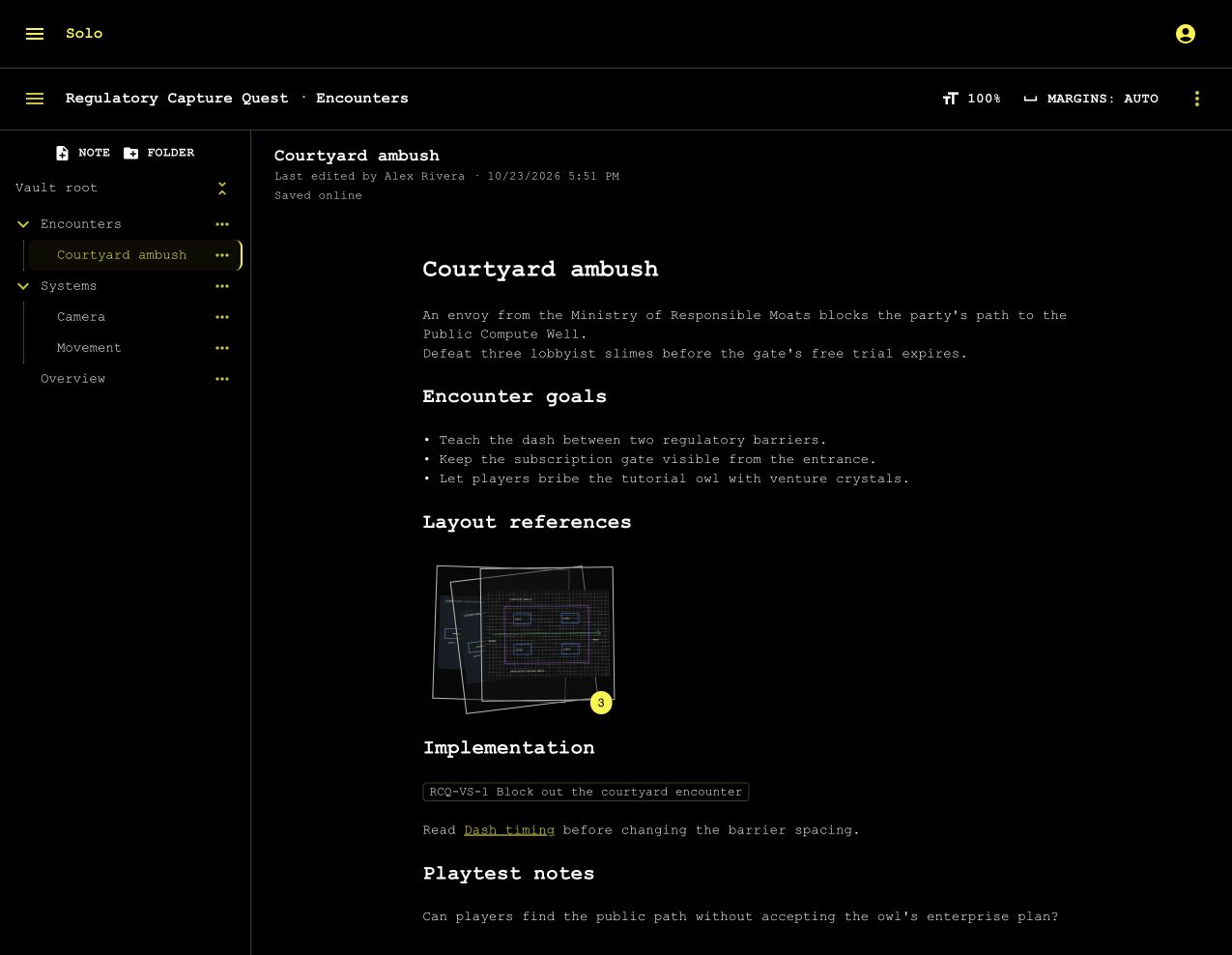
Select Add image in the palette, or paste or drop an image into the editor. Select New sketch to create a sketch. Attachments remain rendered while you edit the surrounding text. A progress circle shows in each preview until it loads.
Place attachments on the same line to form a stack. Drag a rendered attachment to move its embed within the note. The preview size follows the editor’s font scale.
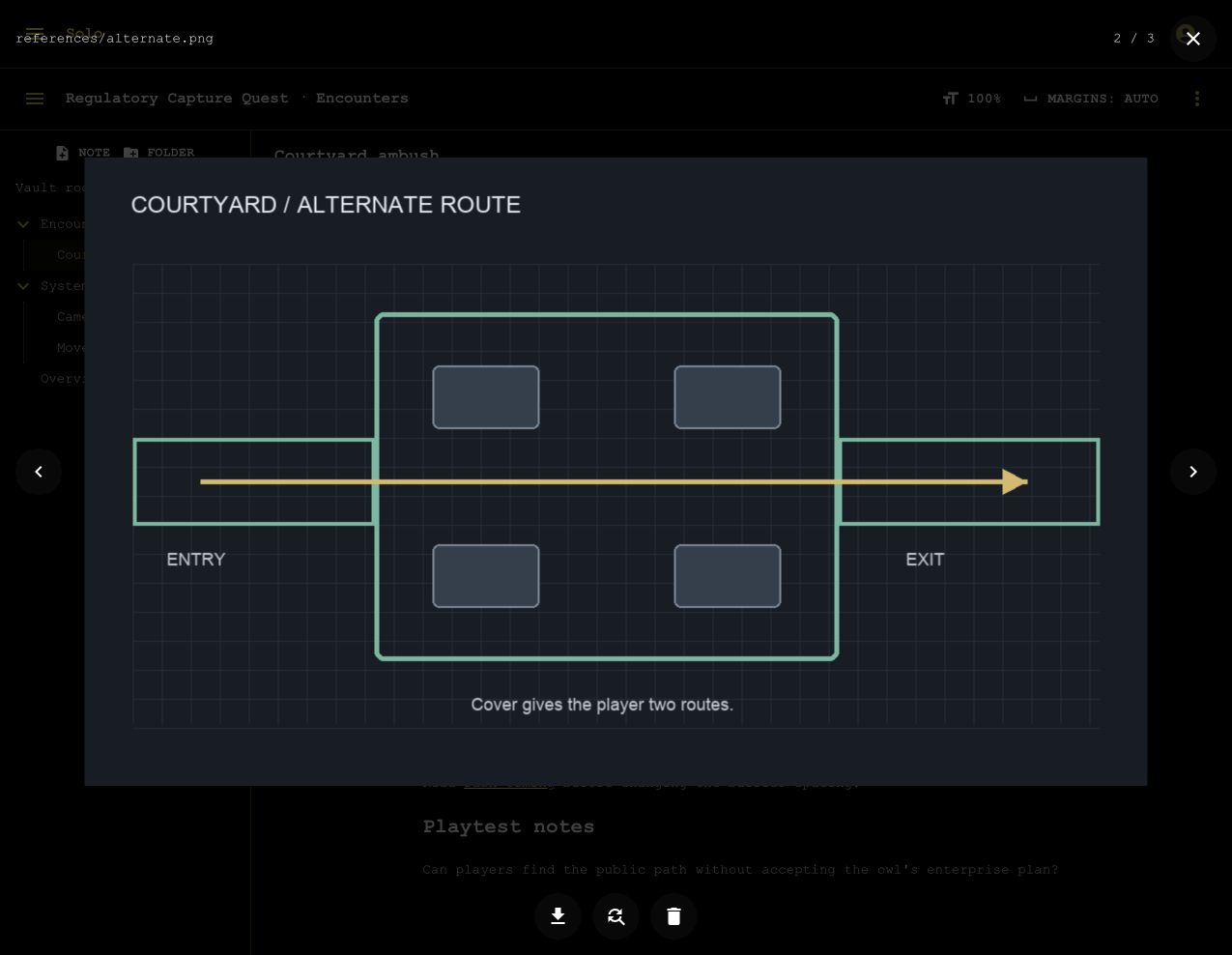
Select a preview to open the attachment viewer. Use its arrows or the Left and Right arrow keys to change attachments on that line. Select the background or Close viewer to close it.
The viewer can download images and export sketches as PNG. Writers can also replace an image, edit a sketch, or remove an attachment. If the attachment was created in a different note, select Open “note name” in the viewer to go to that note. Use the viewer to remove an attachment. Backspace and Delete do not remove rendered attachments.
Remove or delete an attachment
Select Remove attachment in the viewer, then choose one of these options:
- Remove from note removes the embed from this note only. The image or sketch stays stored in the vault, and other notes that embed it are not changed. To add it back, use the attachments list.
- Delete permanently deletes the image or sketch from the vault and removes the embed from this note. You must confirm the deletion. You cannot undo it.
After a permanent deletion, other notes that embed the attachment show it as unavailable. A person who has the sketch open sees it change to read-only. They can export a PNG to keep a copy. If they have strokes that were not saved, closing the sketch asks them to discard those strokes. In a downloaded vault, the deletion is queued and synchronized like other offline changes. The server refuses it if someone else changed the attachment first.
Find every attachment
Select Attachments in the palette to list every image and sketch in the design doc. This note lists attachments that were created in or are embedded in the open note. Other notes lists the rest, with the note that created each one. Not embedded marks an attachment that no note embeds, for example after you remove it from its only note. Type in the filter box to find an attachment by its name or its note’s name.
Writers can do these actions from the list:
- Insert adds the attachment’s embed at the cursor. You can insert an attachment from any note.
- View opens the attachment in the viewer.
- Edit sketch opens the sketch. Replace image uploads a new file in place of the image.
- Delete permanently deletes the attachment after you confirm. Its embeds in the open note are removed, and other notes show it as unavailable.
The list uses the last saved copy of the other notes, so an embed added a few seconds ago in another note can show as Not embedded.
Work with other people
Profile pictures identify people who view or edit the same note or sketch. Each person has a project color. The same color outlines their picture and cursor. Changes appear without a page reload.
An editor without a local download becomes read-only while disconnected. It synchronizes again when the connection returns. Closing an editor waits for saving. If saving fails, the editor stays open.
Work offline
Select Keep this vault offline in the vault header while connected. Wait until the synchronization menu says ready offline. The download includes every note, sketch, image, and the files needed to open the app. Offline use requires a Solo client build with offline support.
Downloaded vaults support creating, reading, editing, moving, renaming, and deleting content without a connection. Changes save on the device before the editor closes. Queued document updates combine into larger packages when synchronization resumes. The synchronization agent uploads them while the app is open, including while you view other pages. Reopen the app after reconnecting to resume uploads.
The app-bar synchronization menu lists downloaded vaults and pending changes. Use Open downloaded vault to return to a local vault. Saved on this device means local storage completed. It does not mean the server received the change.
Concurrent text edits merge automatically. Conflicting metadata changes remain queued for review. Queued deletions stop if remote content changed. Use Review pending changes to retry a change or discard a queued metadata action. Export a recovery ZIP before discarding work you need. The ZIP contains readable files and the original synchronization data.
Downloads belong to an account and instance. Signing out keeps queued data for that account but stops its synchronization. A new account cannot upload another account’s queue. A server permission change can prevent uploads. The local work remains available for recovery.
Safari can remove website storage under disk pressure. Solo requests persistent storage, but a download does not replace a backup. See WebKit’s storage policy. Remove download is available after pending changes finish synchronizing. An open editor switches to online saving after its changes finish synchronizing. Close the vault in other tabs before removing its download.
Close a design doc
Select Close in the vault header’s Design doc actions menu. A closed vault remains readable and exportable. Its content cannot change. The project’s Closed design docs section has Reopen and View actions. Delete is available only after a super admin closes the vault.