Sketches
Draw together on a page inside a design note.
Sketches belong to notes in Design Docs. Their editor fills the window and keeps the note editor inactive until you close it.
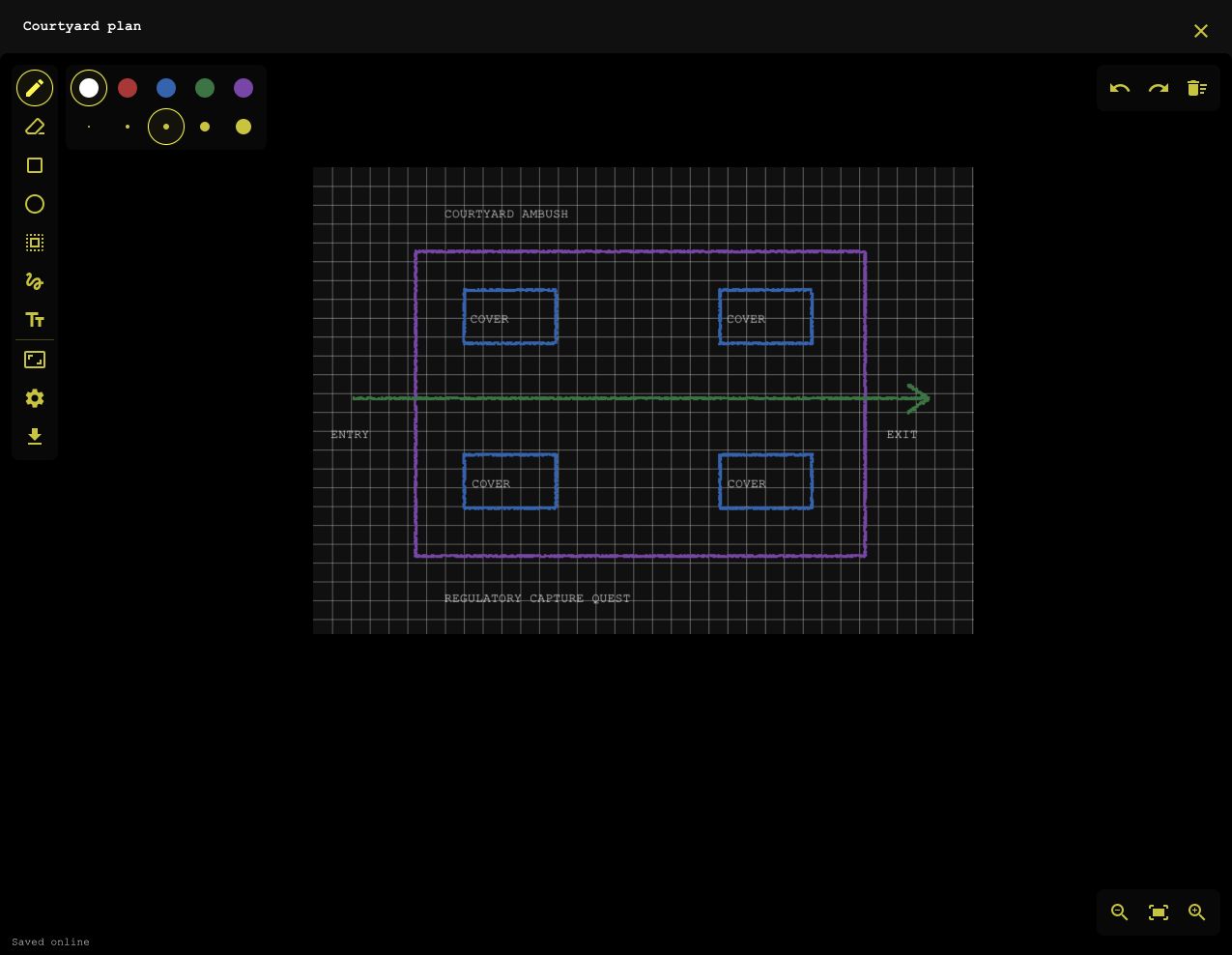
Create or edit a sketch
- Open a note that you can edit.
- Select New sketch in the insertion palette.
- Enter a name.
To edit an existing sketch, select its preview. Then select Edit sketch in the attachment viewer. Changes save automatically while connected. Use the X in the top-right corner to return to the note. Other people who have the note open see the updated preview when you close the sketch.
Drawing tools
The left palette contains these tools:
| Tool | Use |
|---|---|
| Pen | Draw a stroke. Pencil pressure changes its width. |
| Eraser | Erase part of the drawing. |
| Rectangle or Ellipse | Drag between two corners to draw a shape. |
| Box select | Drag a rectangle around objects to select them. |
| Lasso select | Draw a closed boundary around objects to select them. |
| Text | Select the page to create text, or select existing text to edit it. |
Selected objects have a bounding box. Drag inside it to move the selection. The preview can extend beyond the paper while you drag. Releasing the selection applies the move.
Use Constrain shapes, or hold Shift, to draw a square or circle. The color controls offer theme ink, red, blue, green, and purple. The five brush buttons set the base width. Text uses the instance theme’s font.
Pencil and touch
Touch drawing starts disabled on touch devices. Pencil draws while one finger pans the view. Use Draw with touch to enable finger drawing. The toggle appears only on devices that support touch.
Two fingers can pan, zoom, and rotate the view. Mac desktop builds also support the trackpad rotation gesture. Pressure from a Mac trackpad depends on browser support.
Pan, zoom, and rotate
| Input | Result |
|---|---|
| Scroll | Pan the view. |
| Shift+scroll | Pan horizontally. |
| Cmd+scroll on Mac, or Ctrl+scroll elsewhere | Zoom around the pointer. |
| Alt+scroll | Rotate around the pointer. |
| Space+drag, or middle-button drag | Pan the view. |
| Zoom in, Zoom out | Change the zoom. |
| Fit page | Fit the complete page into the available view. |
Zoom controls sit at the bottom right. These actions change the view, not the drawing.
Page settings
Select Page settings in the left palette. Choose A3, A4, A5, or Letter paper and portrait or landscape orientation. Patterns include empty paper, a grid, notebook lines, and dots. The paper remains opaque. Pattern marks use half opacity.
A smaller page can hide existing drawing outside its bounds. Enlarging the page reveals that drawing again.
Undo, clear, and export
Undo, Redo, and Clear sketch sit at the top right. Cmd+Z on Mac, or Ctrl+Z elsewhere, undoes your last edit. Add Shift to redo it. On a touch screen, tap with two fingers to undo and with three to redo.
Clear sketch asks for confirmation before clearing the page. Undo can restore the cleared content.
Select Export PNG in the left palette to download a still image. The note’s attachment viewer also offers PNG export. Export keeps the editable sketch in the vault.